Posts for: #Dlink

Securing your StarHub Home Router

As with all new shiny equipment,  a newly installed router in your home requires a few things to be configured to properly secure it.

Goes without saying, that you should change your WiFi password the moment the technician leaves your home, but there are other things you’d need to configure in order to secure your router against common attacks.

Now remember, even if you follow all the advice on this post, there’s a strong chance that you’d still be hacked somewhere down the road–especially if you’re relying on a crappy consumer grade router, but taking these precautions raises your security level above the general population, giving you an edge over everybody else, and sometimes the difference between being hacked and staying safe could be one simple configuration on a router.

For this post, I’m going to use the standard Dlink 868L router that StarHub gave me when I signed-up for their 1Gbps package. While the post is specific, the general principles still apply to any router you own.

Step 1: Logon to the router

Goes without saying, all changes have to be made on the router itself. The good news is that all general purpose routers like the Dlink-868L come with a web interface, i.e. the router host a website on your network that you can use to change settings.

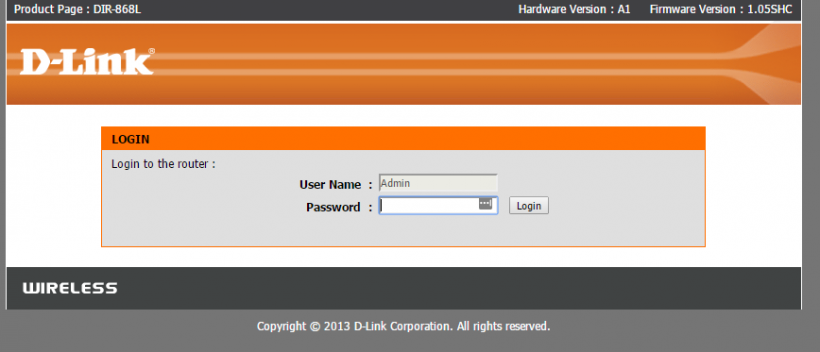
Fire up a browser like Chrome or Firefox (God forbid you’re on Internet Explorer), and point the address bar to http://192.168.0.1 and you ‘should’ come to the router homepage (image below). If not, try the other possible addresses, like http://192.168.1.1 or http://10.1.1.1, if none of those work, you’ll need to go to your ipconfig on your local windows client to determine the ‘gateway’ ip address of your router.

Once there, you’ll see the following screen. For most StarHub customers, just logon with the admin user and leave the password field blank–as in don’t enter anything for the password.
login-screen

[]

Setting up a Dlink DDNS for your Unifi Router

A Domain Name Server (DNS) is basically the address book of the world wide web. What it does in very simple terms is it converts a web address like www.keithrozario.com into an Internet Protocol address like 208.94.116.157 (this might look like garbage but it's actually 4 numbers separated by a dot, and it's these 4 numbers that uniquely define every machine on the internet).

It's the Internet Protocol address that can actually get you to your destination. Think of it like the actual phone number of the person. It's nice to know someone's name, like Keith Rozario, but it means nothing in terms of contacting me if you don't have my Phone Number. So if you wanted to contact me with just my name, you'd have to look for something called a 'phone book'. In this case, the DNS is the phone book, that translates a name to a number, and the DNS is publicly available.So what is a Dynamic DNS? Well, that's where the allocation from name to IP is dynamically allocated. For instance, the IP address of my website has remained static for the 1.5 years it's been around. So the DNS allocation for my website is pretty much stable. Although I did recently change the web-host, but that's another story.

However the IP address of my home Unifi connection changes everytime I restart my router, which is about once a week or so. If I wanted to add some sort of permanence to my connection, without splurging for expensive static IP packages, I could opt for a Dynamic DNS (or DDNS).

So let's say I have a IP camera at home, that's recording a video feed that I can view on my phone. If I connected my phone to the IP address directly, that wouldn't be a good idea. If the connection dropped while I was away, or my house had an intermittent power cut, that forced the router to re-start (and hence change it's IP), I would lose all connectivity to the IP camera, and my entire home network as well. This is because, I wouldn't know what my home network IP address would be anymore, and hence have no way to contact it. It's like changing my phone number, if you keep trying to call your old number you'd most probably get an error message, or wind up calling someone else.

[]

How to Port Forward your Unifi Dlink Dir-615 router

dir-615

Port Forwarding is a really simple concept, but a very important step you need to take if you want to remotely access the devices you have at home. For instance, if you have a Unifi connection connected to an always on desktop and you wanted to Remotely access your windows machine, you’d need to perform port forwarding on your router.

Similarly if you’ve just installed a new IP camera in your home, and want to access the camera while you’re on the road you’ll need to perform port forwarding on your router.

Port forwarding is a neccessary step in order to access your home devices from outside your home. If you want to access anything in your home remotely you’ll need to configure some sort of Port Forwarding, and here’s the why are how.

[]