How to Port Forward your Unifi Dlink Dir-615 router
Port Forwarding is a really simple concept, but a very important step you need to take if you want to remotely access the devices you have at home. For instance, if you have a Unifi connection connected to an always on desktop and you wanted to Remotely access your windows machine, you’d need to perform port forwarding on your router.
Similarly if you’ve just installed a new IP camera in your home, and want to access the camera while you’re on the road you’ll need to perform port forwarding on your router.
Port forwarding is a neccessary step in order to access your home devices from outside your home. If you want to access anything in your home remotely you’ll need to configure some sort of Port Forwarding, and here’s the why are how.
Why you need to perform Port Forwarding
To answer the question of why, you first have to understand how the IP addresses on your home network work. In your home you have a router, and all your devices connect to this router to access the internet.For the purpose of this analogy, assume I have a smartphone, a PC and a IP camera connected to my router. So my router has 3 devices connected to it.
These devices are actually connected to two networks. One internal network called the Local Area Network (LAN), and one external network called the Wide Area Network (WAN). In most cases the WAN is the internet, but it doesn’t have to be.
You could try pulling out the WAN cable from your Unifi Router, and you’d discover that the while devices can’t go online anymore they could still connect to each other. In this case, my PC could still access my IP camera, but not Facebook. That’s because my IP Camera is on the LAN, while Facebook is on the WAN.
So on top of the LAN IP addresses, you also have a WAN IP address, which you can determine by simply browsing to whatsmyip.com. LAN IP addresses always start with 192.168, but WAN IP addresses can start with almost anything. LAN IP addresses identify the device on the LAN, where as a WAN IP addresses identify the device on the WAN.
The main difference however, is that while each device on your home network gets it’s own LAN IP address, all the devices share the same WAN IP address. Put another way, the LAN IP address is unique to each device, but the WAN IP address is the same for all the devices on your home network. You can try this by visiting whatsmyip.com from the various devices you have on your home network and you’ll notice they all show the exact same IP address.
For the most part this is straightforward, because all traffic on the router originate from the device itself. When you browse Facebook, or go online, you trigger these interactions from your smartphone or PC. So because the router knew which device triggered the interaction, it will know how to route the corresponding responses from the websites.
However, if the interaction was triggered from an outside source that’s a different story.
So imagine if I wanted to login into my home network to access my newly installed Foscam IP camera, I’d try to access my WAN IP address, but once I reach the router there’d be problem. The router, can’t figure out which device to route my request to. Since all devices share the same WAN IP address, the router doesn’t know if I wanted to access my smartphone, my PC or my IP camera, therefore the request is dropped and you get nothing. To the router, it doesn’t know which LAN IP address to forward the request to, so it drops the request altogether.
The only way to resolve this issue is through port forwarding
How does Port Forwarding Solve it?
Port Forwarding, does something very simple, it's actually a configuration table on your router that directs your router to forward a certain request to a certain LAN IP address based on the port number of the request.Sound complicated?
A port number is simply a way to specify a connection request down to the application. When you connect to any machine on an IP address you also specify the port number, that way the machine can have many different applications running and depending on the port number know which request to forward to which application. Otherwise, all machines could only run one application.
In this case when I try to connect to my IP camera from a remote location, I’m trying to connect to the WAN IP address over a specific PORT number.
By configuring the Port Forwarding on the router, the router will know that all request coming on port 1234 (for example) should be routed my IP Camera on LAN IP address 192.168.0.103
So how do we configure this on my Dlink DIR-615 router?
How to Port Forward your Dlink Dir-615 Router
Step 1: Logon to your router and click the Advanced tab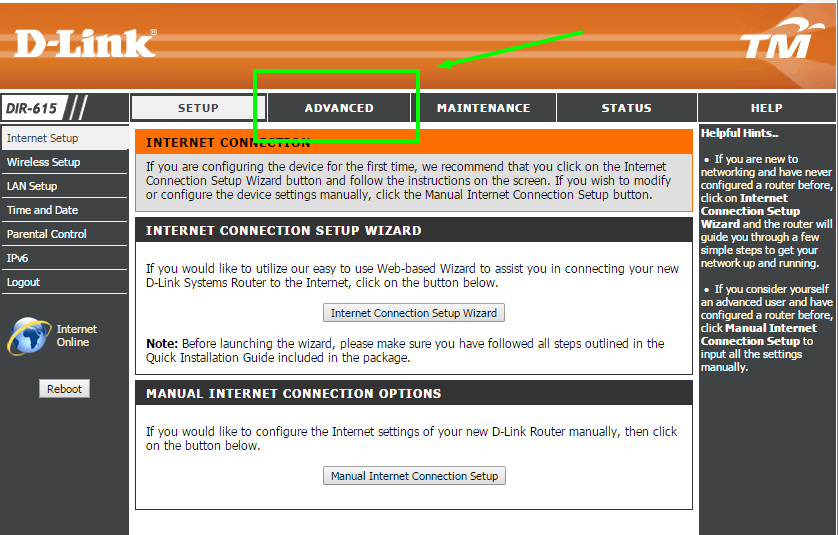
Step 2: Configure the Port Forwarding
[caption id=“attachment_4873” align=“aligncenter” width=“542”]
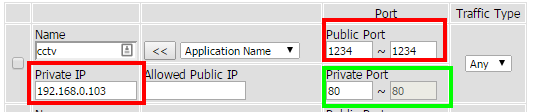
Port forwards FROM port 1234 TO port 80 on 192.168.0.103[/caption]
Entering the Name of the rule (don’t worry too much about this), I named it camera for the purpose of this exercise.
The Private IP of device you wish to Forward to. This is the LAN IP address of the device you’re connected to. You’d also want to make sure your DHCP is switched off and all devices have fixed IP addresses for this to work.
The Public Port range that you wish to forward FROM. This is the Port that someone will try to access from a remote location.
The Private Port range, this is the Port range that you wish to forward TO. Both the Public and Private Port ranges allow you to map different external ports to the same internal ports on different machines. Very important if you have multiple IP cameras at your home operating on the same port. That’s why Port Forwarding and Port Mapping are nearly interchangeable terms.
You should leave the Public IP address empty, I’m not sure what that is for, but leaving it empty works for me.
Finally remember to ‘tick’ the box. I forgot to do this, and spent nearly 20 minutes trying to figure out what I was doing wrong because my port forwarding wasn’t working.
Next go to canyouseeme.org, and check if your port forwarding works, by simply entering the Public Port range you specified (the FROM port range).
Once you get this work, you probably want to find out how to perform a Dynamic DNS on your router, since you’ll need DDNS in conjunction with port forwarding to get most things to work. Click here for my tutorial on DDNS.
Archived Comments